Set Up New Project

1. Go to file-icon.PNG > New.

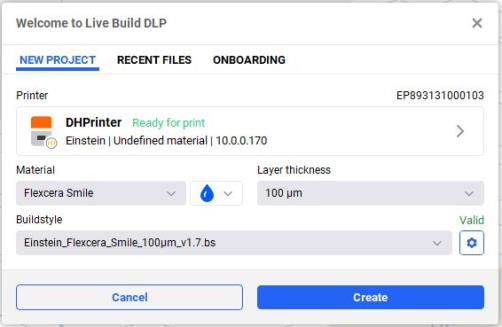
→ The following window opens.

set-new-project-einstein.JPG

2. Select a printer by clicking on the Printer field.

3. Select the required material and set the layer thickness.
Note: The buildstyles are filtered according to the selected printer, material, and layer thickness, see Upload Buildstyle File.

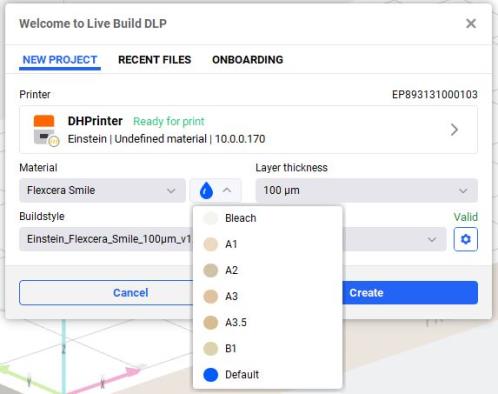
4. Select the color of the dental models next to the Material field. It determines the color of the displayed models on the platform.

set-new-project-einstein-resin-color.JPG

5. Press Create.
→ A new project has been created.

new-project-opened.JPG

The printable space is the platform, represented by the white grid measuring the X, Y, and Z range.

Tip: You can merge one or more project files into the already open project. This enables you to consolidate multiple projects into a single workspace, eliminating the need to switch between projects.